What is SAP Document AI? The vocabulary of the series
Document lifecycle, schemas, templates, extraction methods, confidence score and what you need to set up in SAP BAIP to use SAP Document AI.
By Grecia Rodríguez 8 min read
Many business processes still start with a document: a purchase order in PDF, a scanned invoice, a payment advice. Someone reads it and types the data into SAP. SAP Document AI (formerly SAP Document Information Extraction, a name that still appears on many screens, roles and APIs) automates that step: it receives the document and returns its data as structured fields, ready for another program to use them to create a sales order, a supplier invoice or whatever is needed.
The important thing is that Document AI does not create anything in SAP. It only extracts. There is always an integration layer, for example ABAP, CAP or Integration Suite, that reads those fields and calls the appropriate SAP API. A good part of the problems in this series lie precisely at that boundary.
The lifecycle of a document in SAP Document AI
Every document that enters Document AI goes through the same five stages:
- Upload. The file is sent along with its document type (purchase order, invoice…) and the schema or template with which it must be read.
- Extraction. The service processes the document asynchronously and returns two groups of fields: the header fields, which appear once per document (order number, date, supplier), and the item fields, which repeat on each line (material, quantity, price). Each field comes with its value and a confidence score.
- Review. A person opens the result in the Document AI interface, compares it with the original document and corrects the fields that are wrong.
- Confirmation. The document is marked as final.
- Consumption. The integration layer reads the result via API and creates the object in SAP.
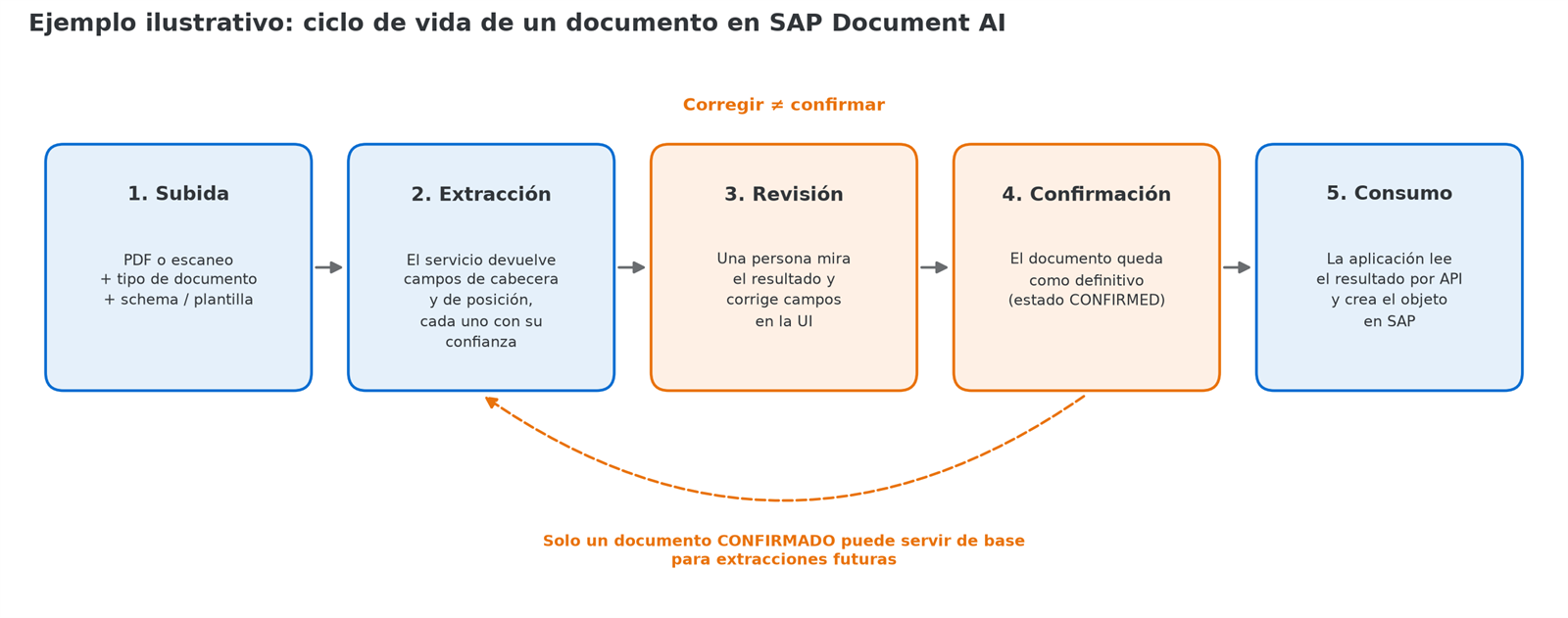
It is worth remembering one detail from the outset: correcting and confirming are two different actions, even though they are done on the same screen. Correcting fixes that specific document. Confirming turns it into final, and only confirmed documents serve as a reference for improving subsequent extractions (the two ways in which the service makes use of them are explained further below). In practice, it is easy to correct without confirming and end up waiting for the model to “learn”.
In many processes, stages 3 and 4 are not mandatory for all documents: if the extraction is good, the integration can consume the result directly. Deciding which documents need human review and which do not is one of the most delicate design decisions, and that is where the confidence score comes in.
The pieces of the model
Schema
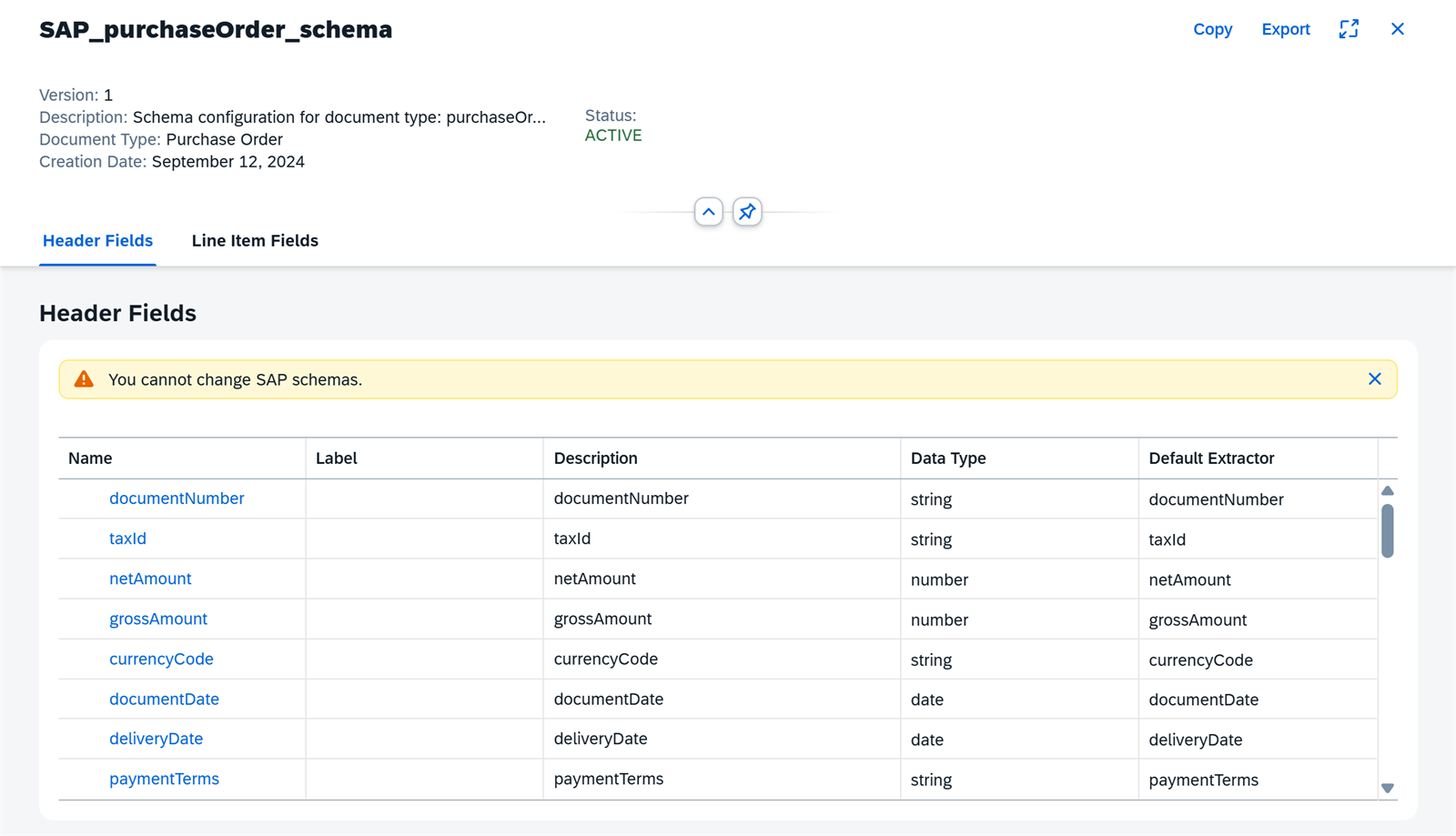
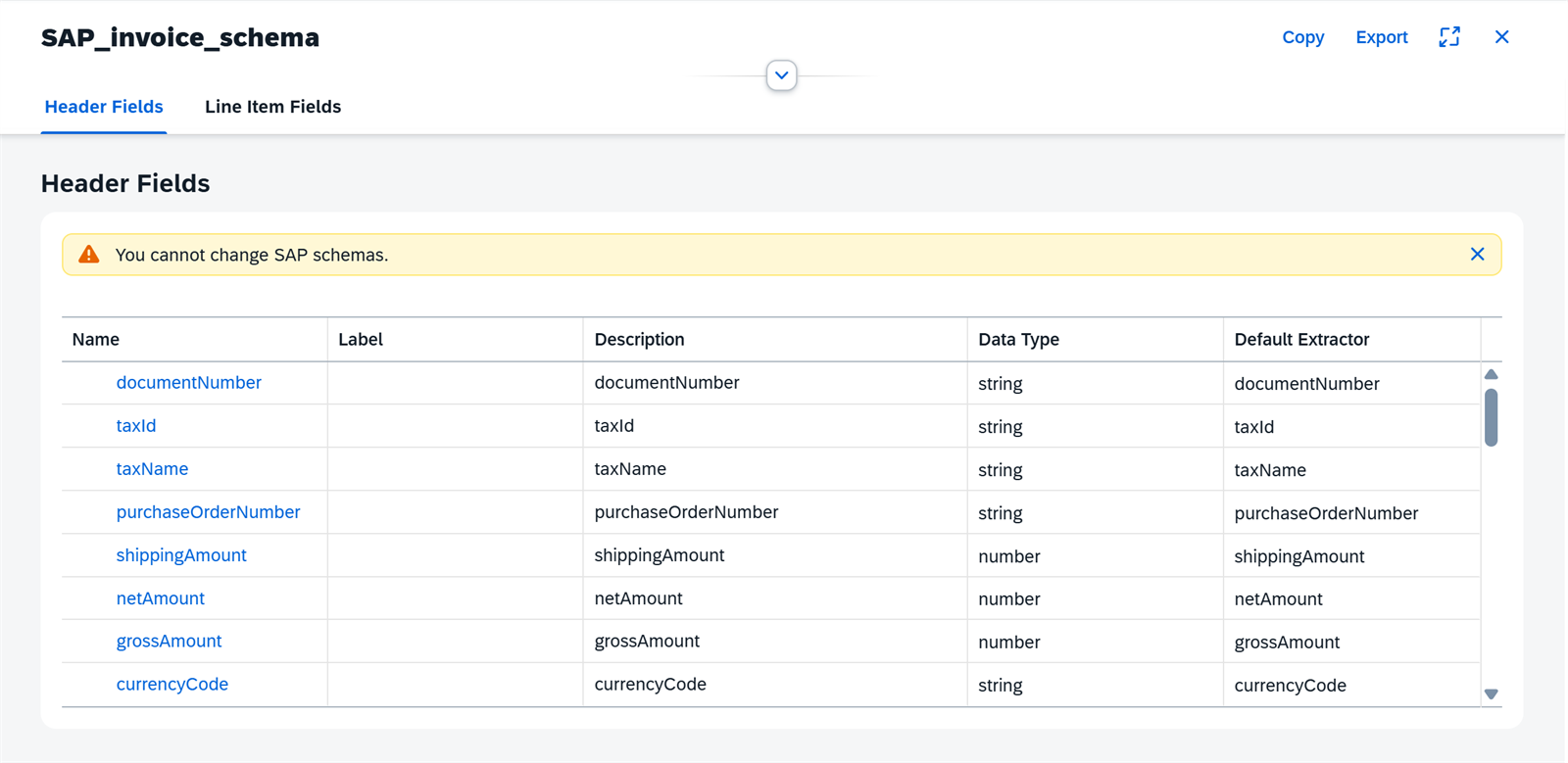
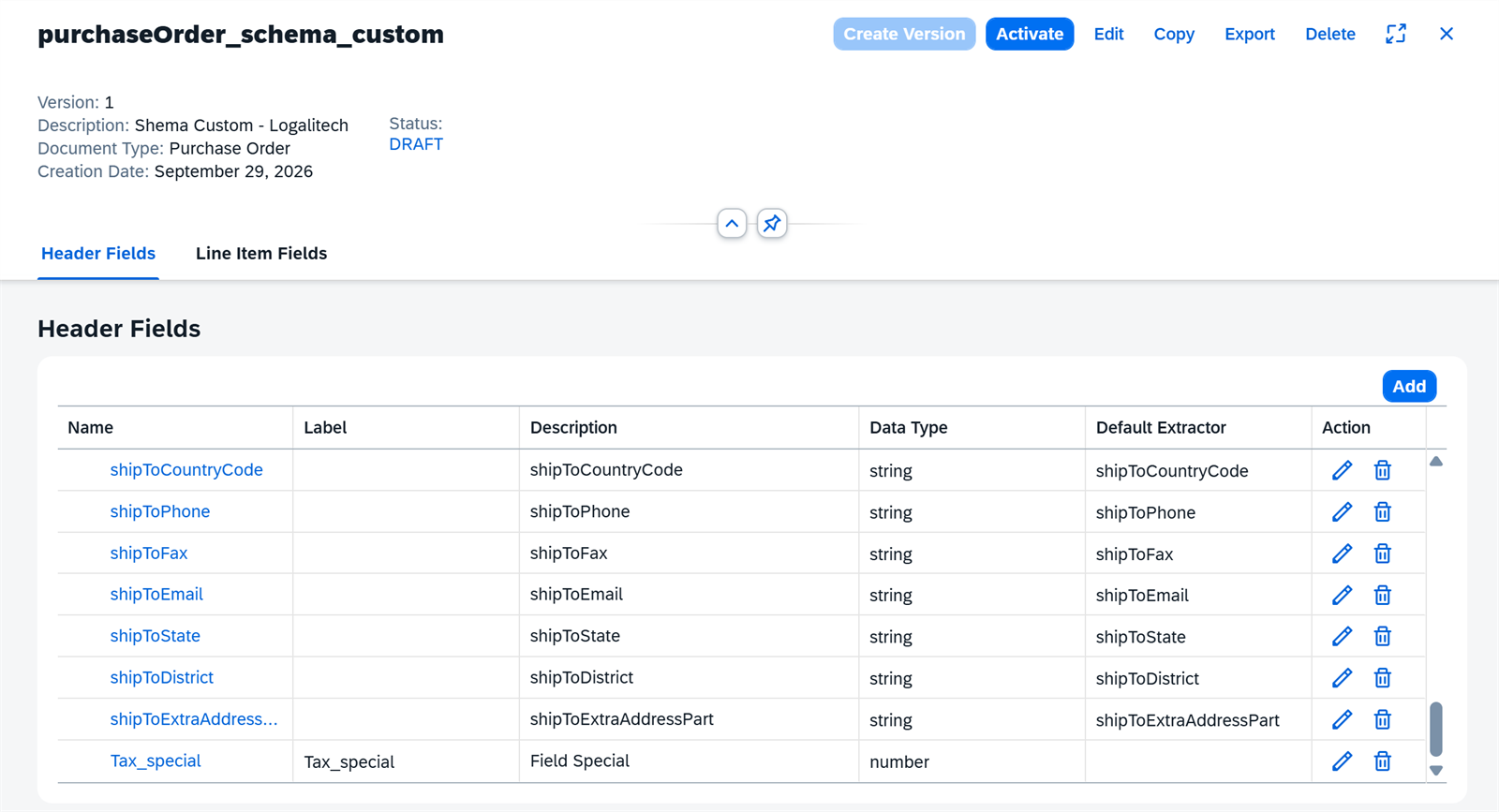
The schema defines what needs to be extracted: the list of header and item fields, and the data type of each one (text, number, date…). SAP provides standard schemas for the usual document types, such as SAP_purchaseOrder_schema for purchase orders or SAP_invoice_schema for invoices. To have your own, you can create one from scratch or copy the standard one and modify the copy.
Standard and custom fields
A schema can have two kinds of fields:
- Standard: defined by SAP, with a fixed name (for example
supplierMaterialNumberorcustomerMaterialNumberin purchase orders), and the service models already know how to find them. - Custom: defined by the project for data the standard does not cover, such as an internal code or a field specific to a particular customer.
In the interface and in the response JSON they look the same, but they are not extracted the same way. Custom fields are resolved according to the extraction method configured in the template (see below), and that affects how their confidence behaves. It is best to treat them as two different families.
Important: custom fields only exist in custom schemas. A standard SAP schema (such as
SAP_purchaseOrder_schema) contains only standard fields and cannot be modified. If you need your own field, you first have to create your own schema, either from scratch or by copying the standard one.
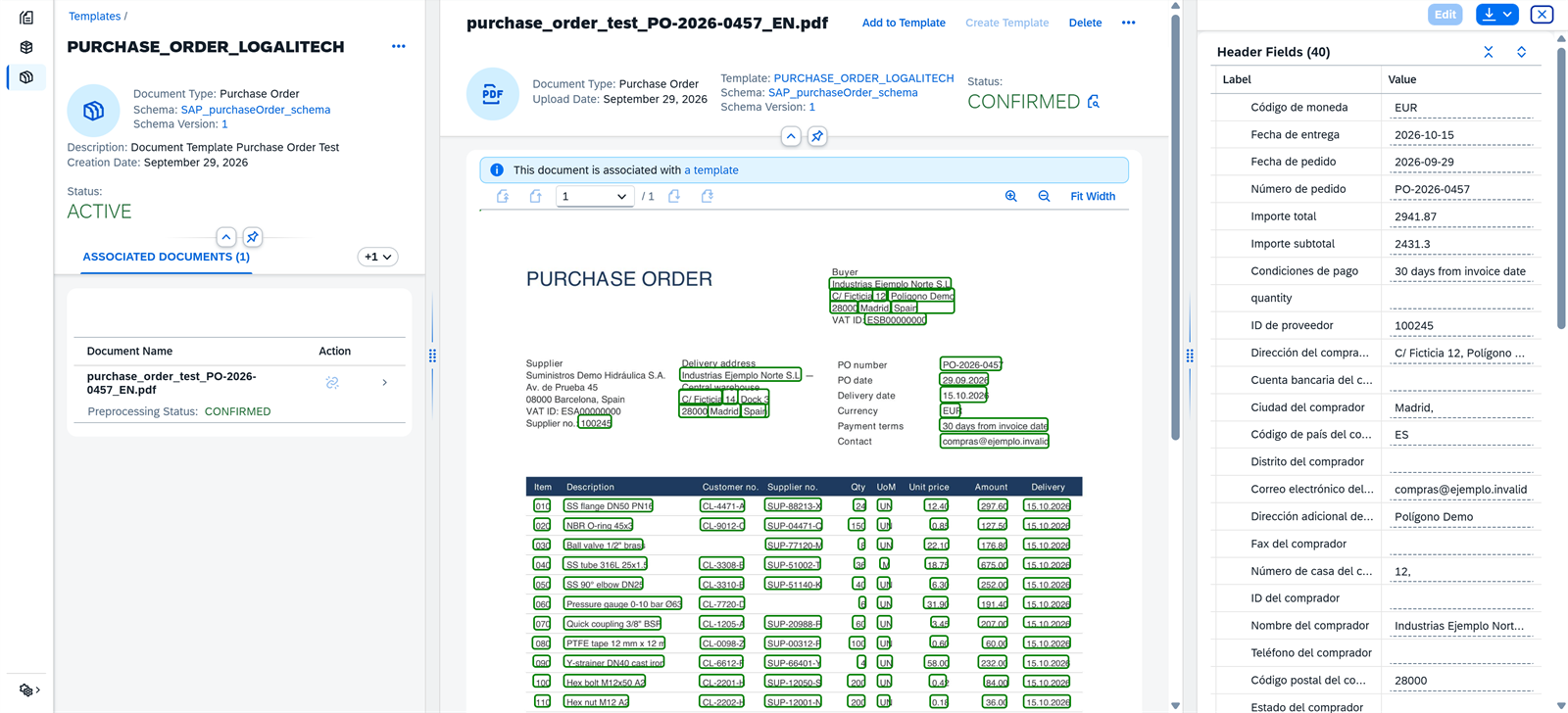
Templates
A template associates a schema with a specific document format, usually a supplier’s. It is built with sample documents of that format that have already been extracted and confirmed, and it tells the service: “purchase orders from this supplier look like this, and the fields are here”. If there are two suppliers with different formats, the usual approach is to have one template for each format.
The quality of a template depends much more on the variety of its samples than on their quantity. Ten identical purchase orders teach the same as just one.
Extraction methods
Each field is extracted according to the extraction method assigned to it in the template. It is configured field by field on the Extraction Fields tab, or for all of them at once with Set Extraction Method for All, and there are three options:
- Template Only: the service uses only what it learned from the template’s sample documents.
- AI Only: a language model (LLM) reads the document and looks for the field based on its name and its description in the schema, without relying on the samples.
- Template with AI: combines the two. This is the option that appears by default.
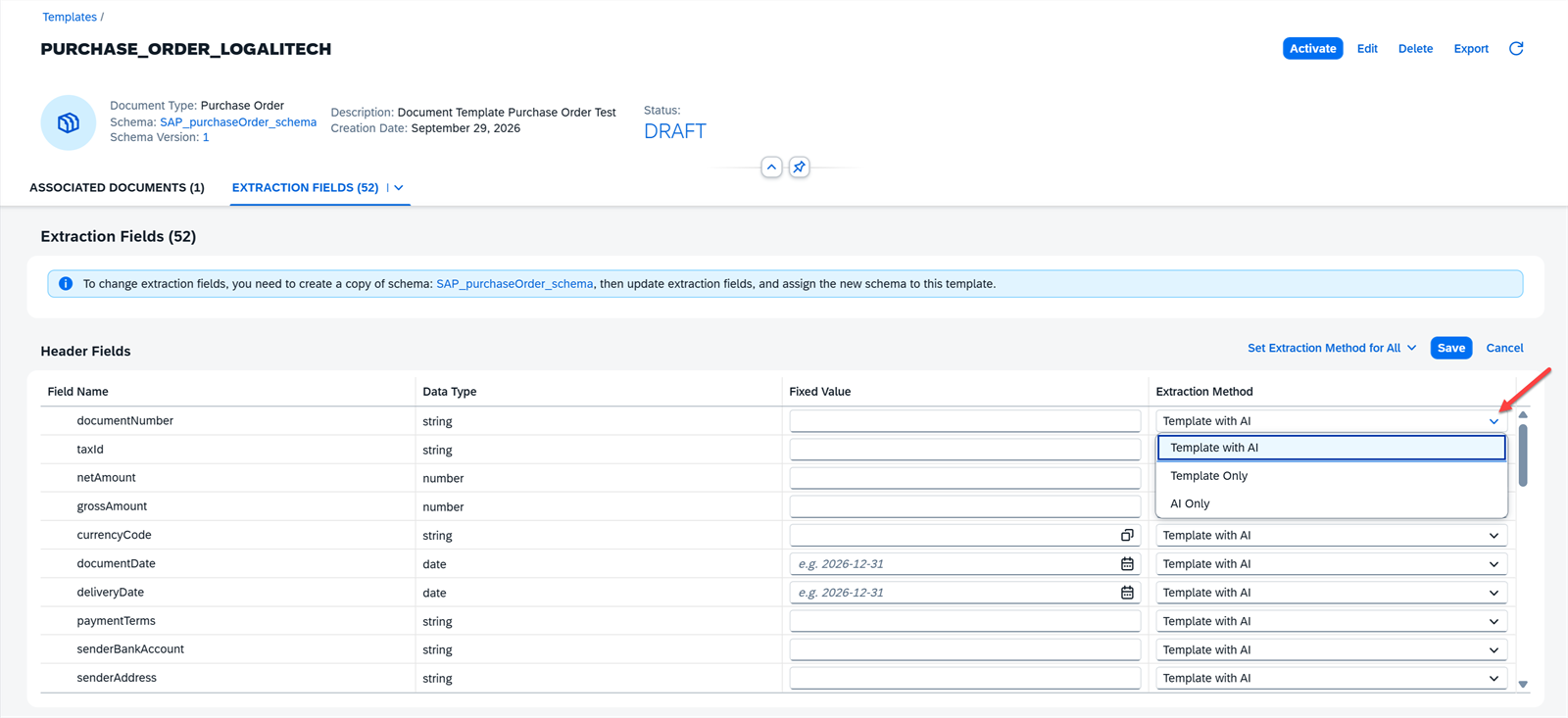
The same screen reminds you of the rule from the previous section: to change the extraction fields you have to copy the standard schema, modify the copy and assign it to the template.
Instant learning
In addition to templates, the service can use the documents a user edits and confirms as an immediate reference for the next similar documents, without creating or retraining a template by hand. SAP calls this instant learning. It has a direct consequence: confirming a badly corrected document teaches the error just as effectively as a correct one.

The confidence score
Each extracted field comes with a confidence value between 0 and 1 (the interface displays it as a percentage). It is usually read as “how sure the service is that this value is correct.” The review interface color-codes it so the person knows where to look first: red below 51%, orange between 51% and 80%, and green from 80% onward.
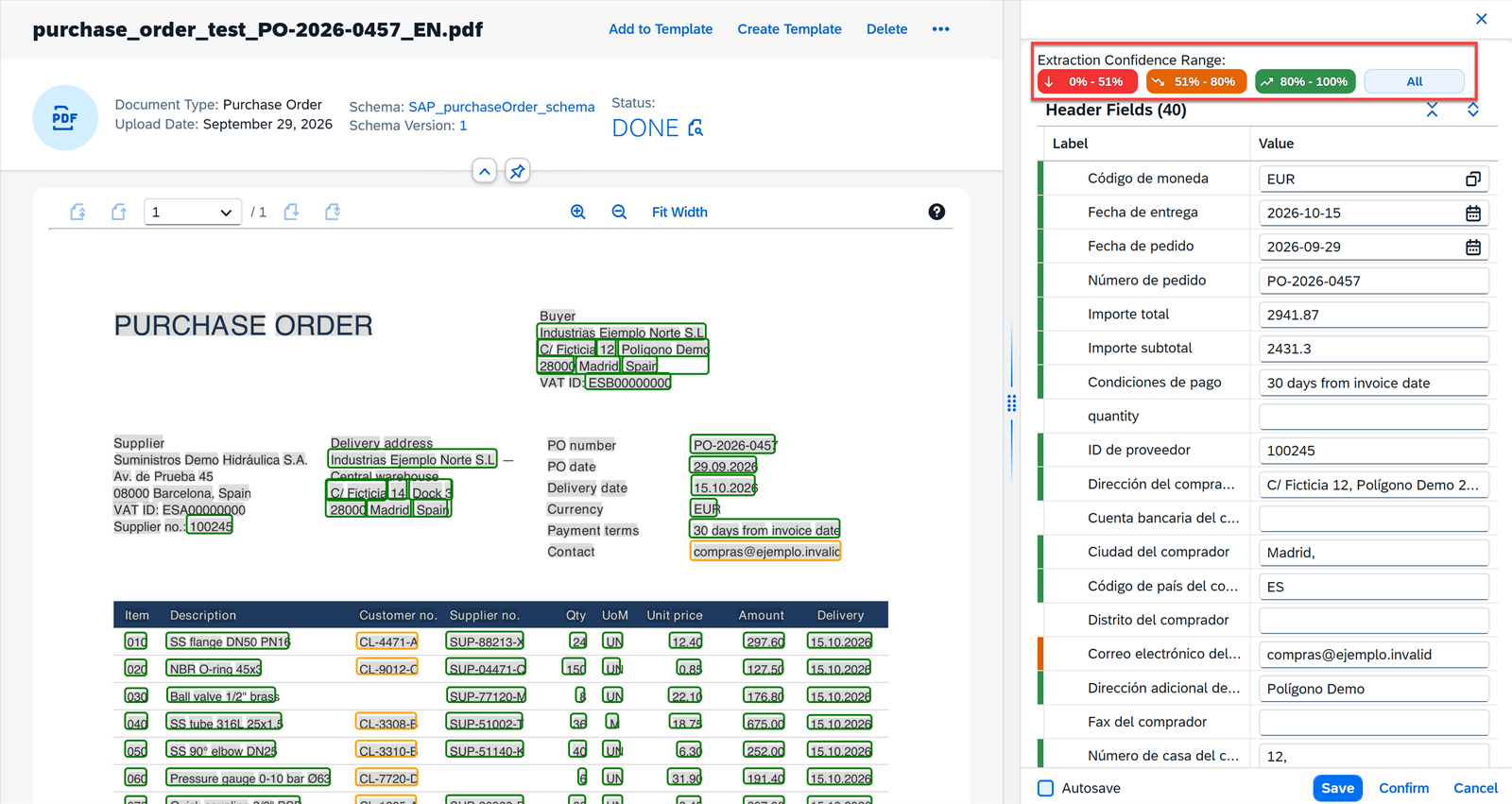
The temptation is immediate: set a threshold, for example 0.8, let everything above it pass directly into SAP and send whatever falls below it for review. It is a reasonable and very common design. But for it to work, that number has to behave as a reliable signal in every single one of the fields on which the decision is made.
What you need to set up in SAP BAIP
Document AI is a SAP BAIP service. Using it requires two access paths: the integration path, which calls the API, and the people path, which configures schemas and templates and reviews documents. The difference between subscribing to an application and creating a service instance is explained in Subscriptions vs service instances in SAP BAIP.
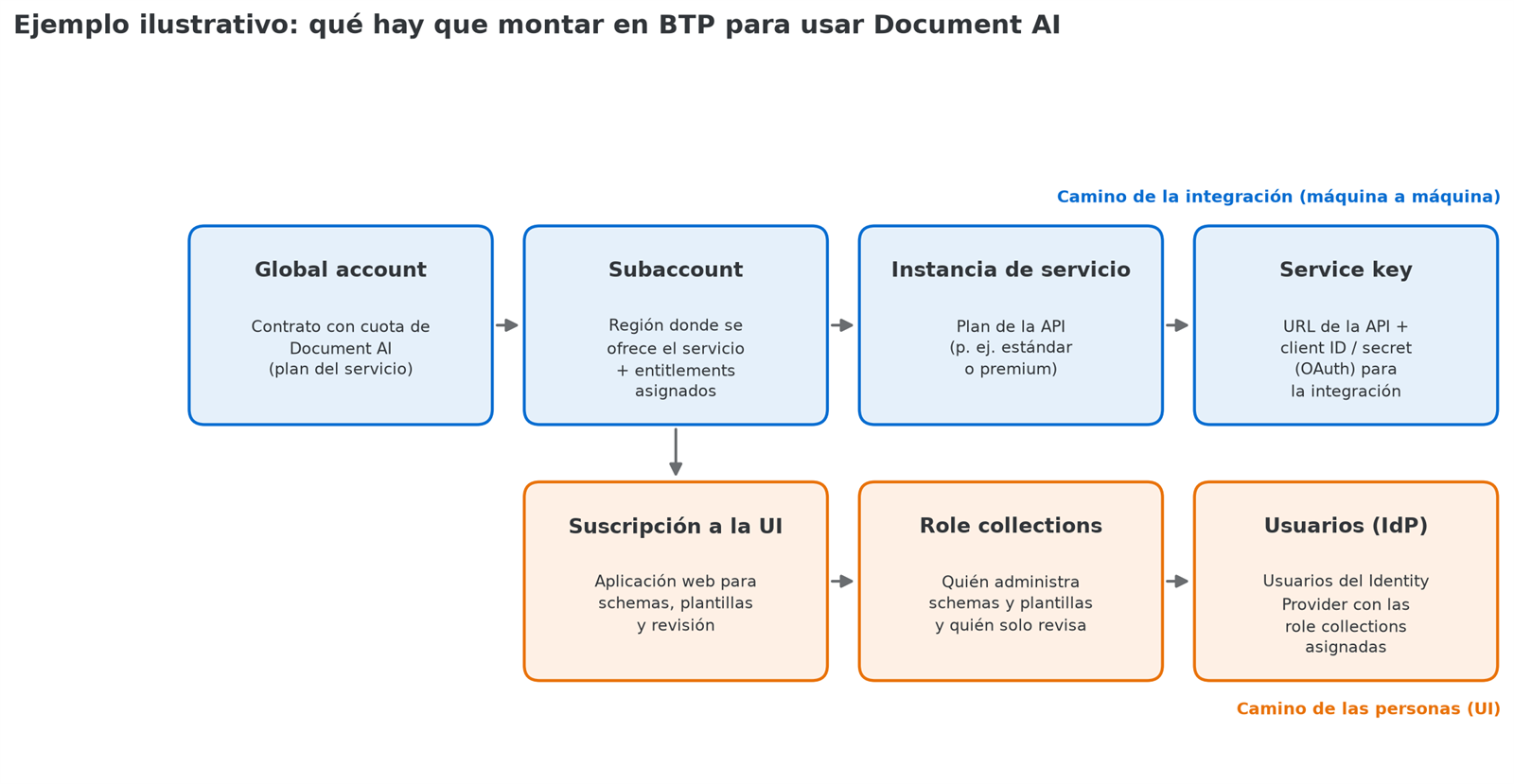
For the integration:
-
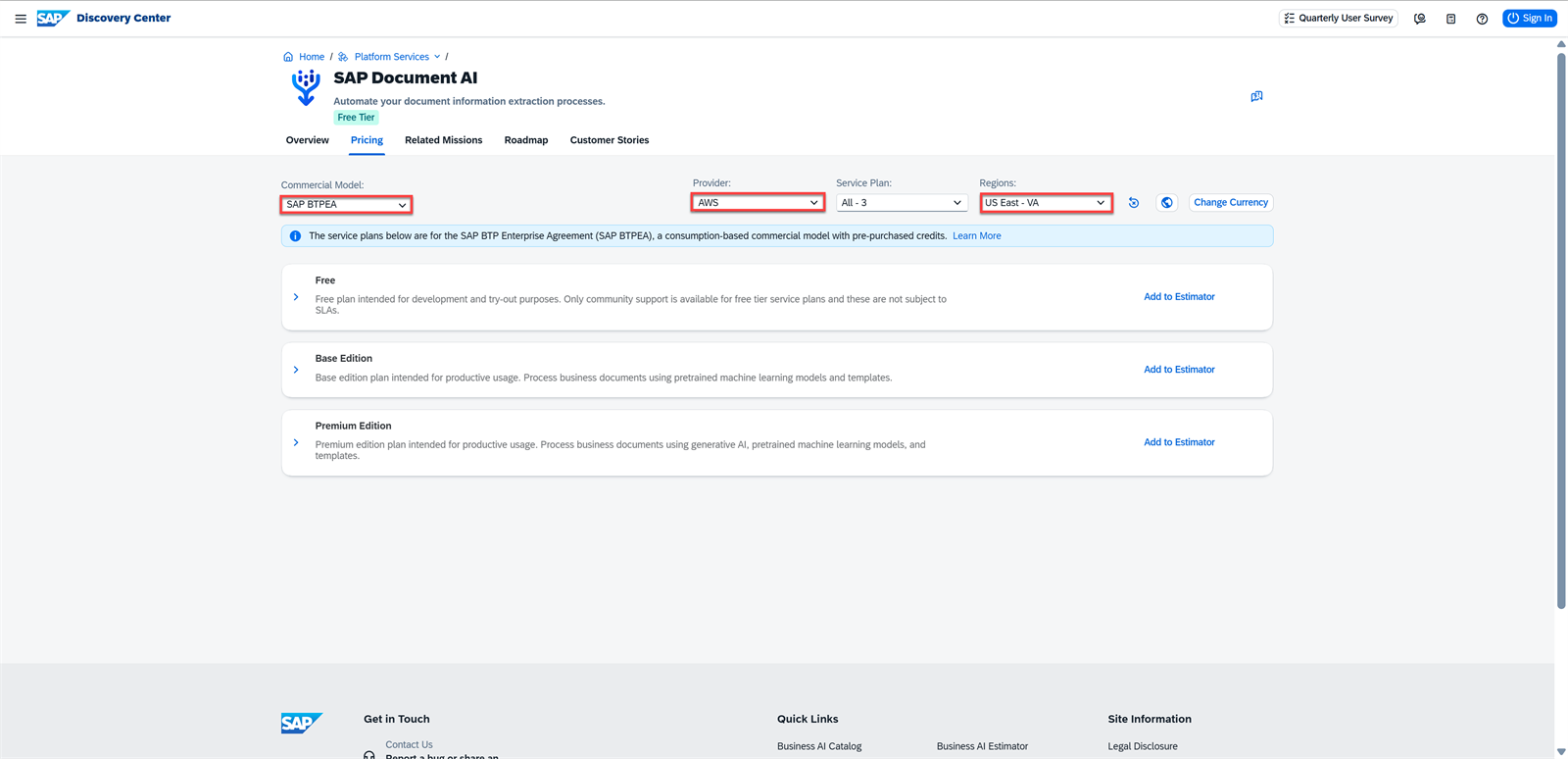
Entitlement. The global account must have a quota for the service, and the corresponding plan is assigned to the subaccount, in a region where the service is available (more detail in Entitlements and quotas in SAP BAIP). In the SAP Discovery Center you can check which plans exist based on the commercial model, the region and the customer’s infrastructure provider.
-
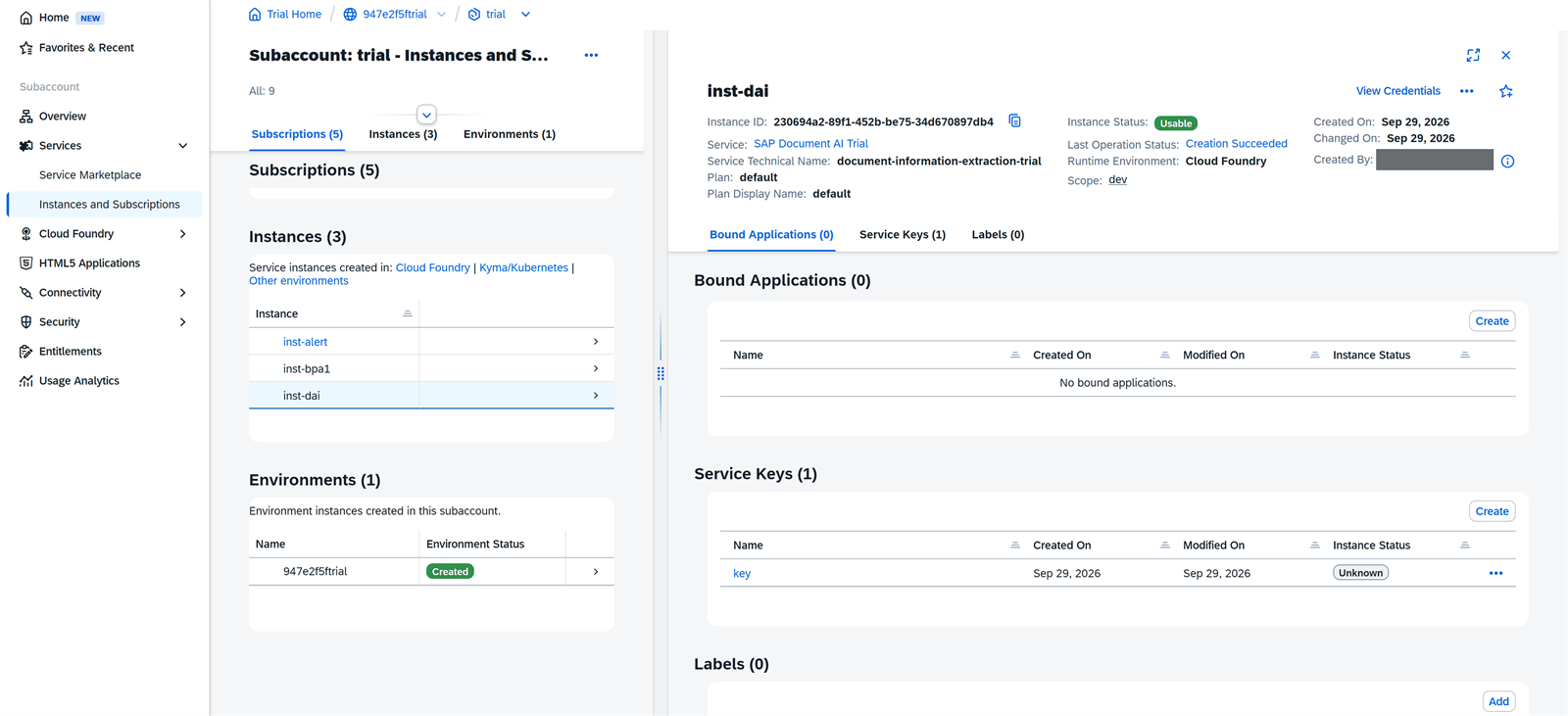
Service instance. In the subaccount, create an instance of the service with the API plan.
-
Service key. Generate a service key on the instance. It contains the API URL and the OAuth credentials (client ID and client secret) with which the integration layer obtains its token. This is what you configure in the destination, in the communication arrangement or in the application that calls the service.
For the people:
-
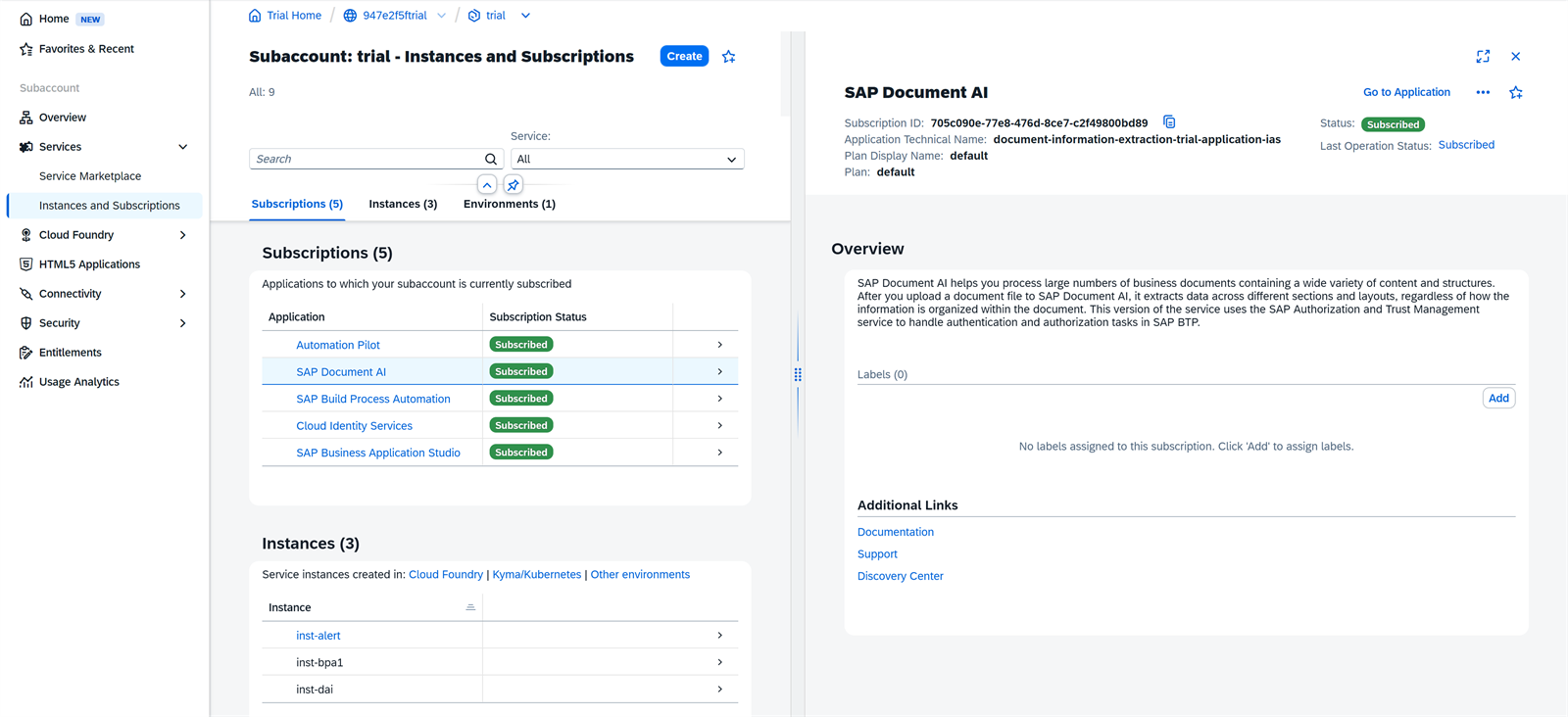
Subscription to the UI. The Document AI web interface is subscribed to as an application in the same subaccount.
-
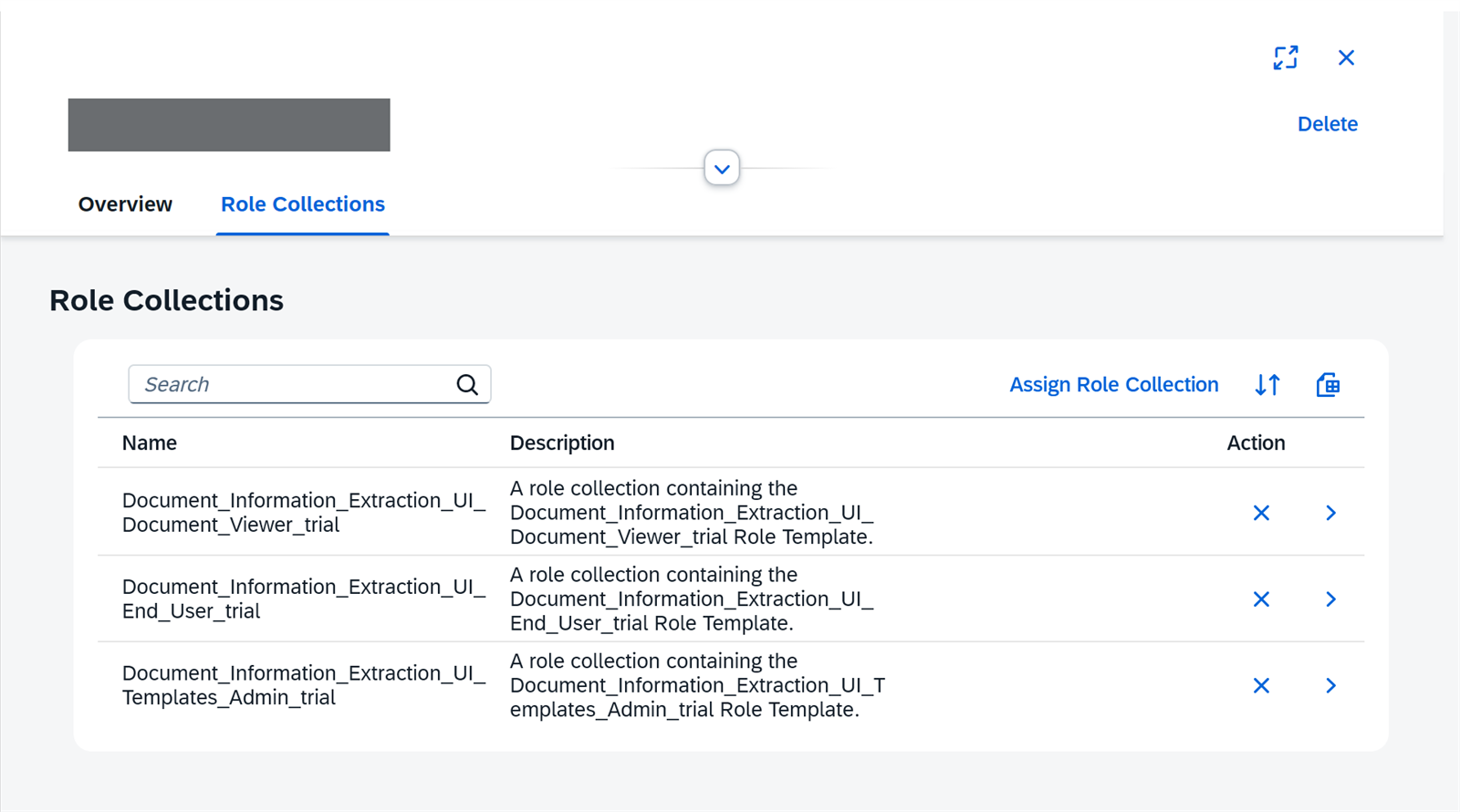
Role collections. When you subscribe, the service creates three role collections in the subaccount:
Document_Information_Extraction_UI_Templates_Admin: grants access to all the interface functions, including schema and template management.Document_Information_Extraction_UI_End_User: for end users who validate the execution and the result of document extraction.Document_Information_Extraction_UI_Document_Viewer: only allows viewing the service details, without modifying anything.
In a trial account the names carry the
_trialsuffix, as shown in the screenshot; in an enterprise account they do not. It is advisable to respect this separation: the person reviewing should not be able to change the schema that the integration depends on.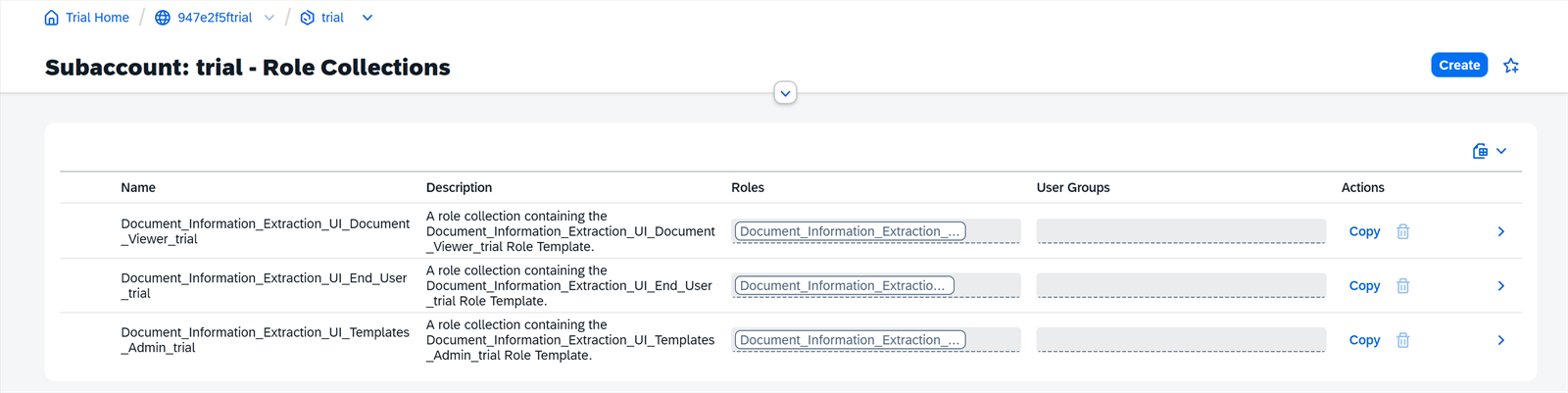
-
Users. The role collections are assigned to users or groups of the Identity Provider configured in the subaccount. How role collections and users work in BAIP is detailed in Role collections, role templates and shadow users in SAP BAIP.
Was this article useful?
Thank you for your feedback.
Comments
No comments yet.