The one SAP Mobile Services setting you cannot change later
When you create an app in SAP Mobile Services you choose XSUAA or IAS, and that choice cannot be changed later. What each option means and when to choose IAS.
By Abel Burduhos 2 min read
Almost everything in the SAP Mobile Services cockpit can be changed after the fact. Token lifetimes, destinations, features, roles, the client configuration. You create an app, you get it wrong, you fix it.
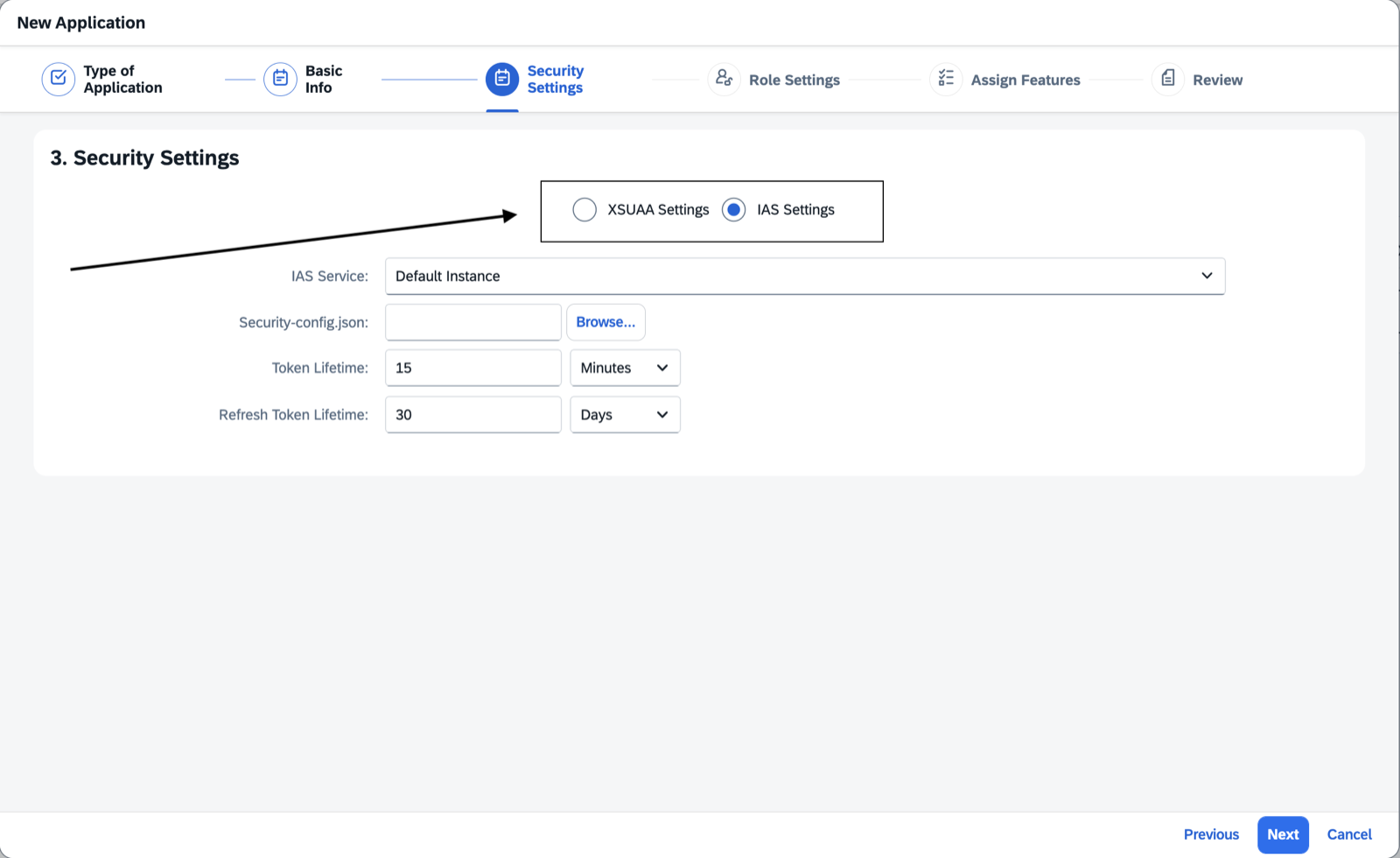
There is one exception. When a mobile application is created you choose which service issues the token it runs on, either XSUAA or Identity Authentication, and that answer is fixed for the life of the app.
SAP states it plainly in the documentation: an app configured with XSUAA cannot be migrated to IAS, and the only way to change it is to create the application again.
The screen where it happens
Step three of the New Application wizard.
What the app looks like afterwards
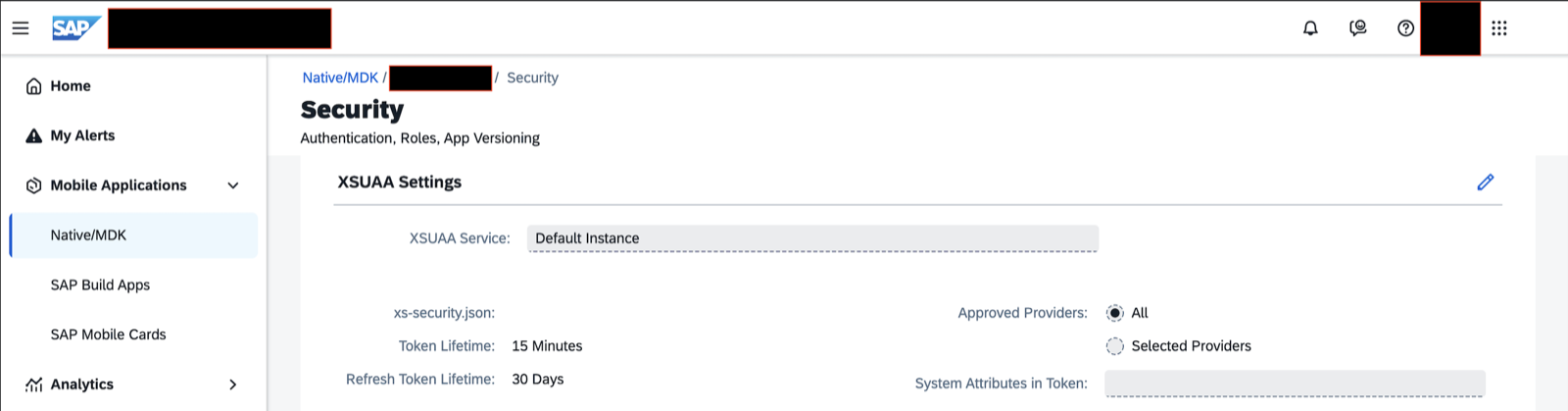
Open an application that already exists and go to Settings, then Security. One built on XSUAA shows this:
One built on IAS shows this:
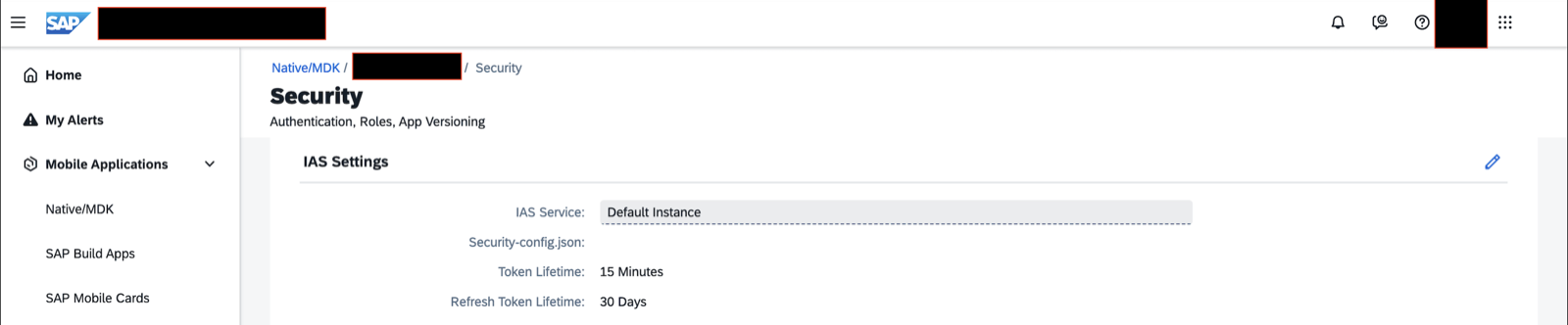
Same page, same product, one section each. The pencil in the corner edits what is inside that section, the service instance, the JSON file, the lifetimes. What it does not edit is the choice.
What you are actually choosing between
XSUAA is the authorization service that comes with the BTP subaccount.
IAS is Identity Authentication, the identity service of the wider SAP landscape. Create an app with IAS support and Mobile Services hands the login over to the IAS tenant, then takes back a token that says who the person is.
That reads like a drawback, but it really isn’t. It is how single sign-on works. The user signs in once, against the same tenant that guards the other SAP applications connected to it, with whatever the security team has put in front of it: the corporate user store, multifactor authentication, conditional access.
For more on how single sign-on works, see ByteByteGo’s What Is Single Sign-on (SSO)? How It Works.
Choosing
IAS is the right answer when the organisation already runs an IAS tenant and expects one login across its SAP applications.
Decide it deliberately. It is the one setting you do not get to revisit.
Was this article useful?
Thank you for your feedback.
Comments
No comments yet.