SAP Integration Suite: enabling the API Management runtime
API Management activated in SAP Integration Suite, but no Configure > APIs. Why the runtime is missing and how to enable it in a trial and in a productive tenant.
By Ioan Hadarau 8 min read
Updated: October 23, 2026
You have activated the API Management capability in your SAP Integration Suite tenant. It appears as active in Manage Capabilities, you have the roles assigned, and yet there is no trace of Configure > APIs in the menu. You cannot create an API Proxy, a Key Value Map, or an API Provider.
On the Integration Suite home page, the Manage APIs card is there, but without any links, while the rest of the capabilities do have them (Discover Integrations, Configure Events, Manage Trading Partners…). And this happens even if you have already assigned yourself all the API Management roles (APIPortal.Administrator, APIManagement.SelfService.Administrator…): you can log out, log back in and review the role collections, and the option still does not appear.
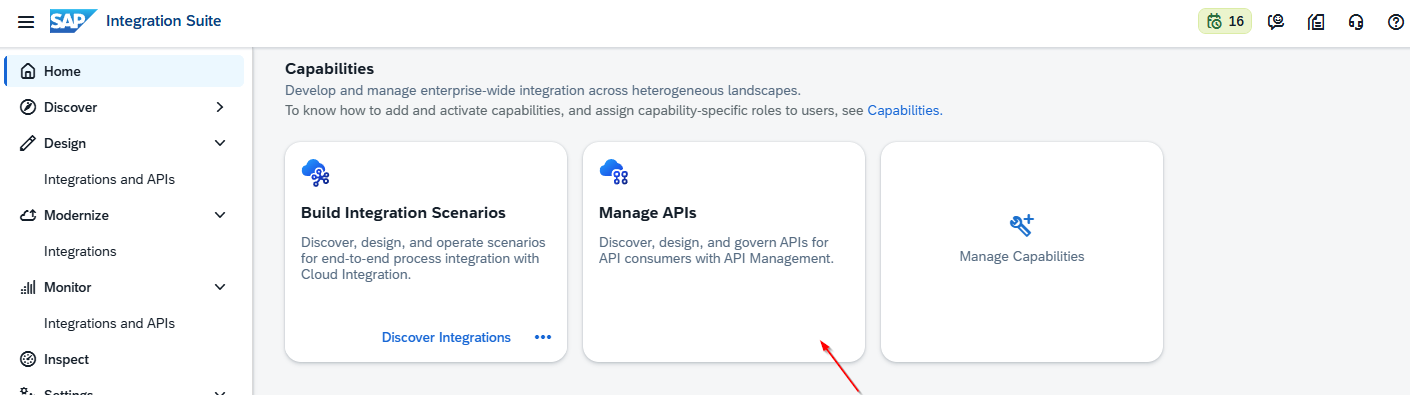
It is not a permissions problem, nor a browser cache problem, nor a roles problem. A step is missing that is easy to overlook: activating the API Management runtime. In this article we explain why it happens and how to resolve it, first in a free trial environment and then in a productive tenant, where the process calls for a few more decisions. All the steps were verified on October 23, 2026.
Why the APIs menu does not appear in SAP Integration Suite
In SAP Integration Suite, two things must be distinguished:
| Concept | What it is | Where it is managed |
|---|---|---|
| Capability (Manage APIs) | The right to use API Management within Integration Suite: it provisions the design components, such as API modeling and the Developer Hub | Home > Manage Capabilities |
| Runtime (Classic API Management) | The API Management tenant where the API Proxies, policies, Key Value Maps and API Providers live and run | Settings > Runtimes |
Activating the capability does not create the runtime. As long as the Classic API Management tab under Settings > Runtimes is Inactive, there is no API Management tenant behind the interface. That is why Integration Suite does not show Configure > APIs: there would be nowhere to save or deploy what you created. The Manage APIs card on the home page may appear even without links.
When the runtime becomes Active, the menu is completed with the API Management options (Configure > APIs, Discover > APIs, Test, Analyze, Engage, Monetize). The Manage APIs card on the home page also changes: it now shows the Discover APIs and Configure APIs links, and Configure > APIs appears in the side menu.
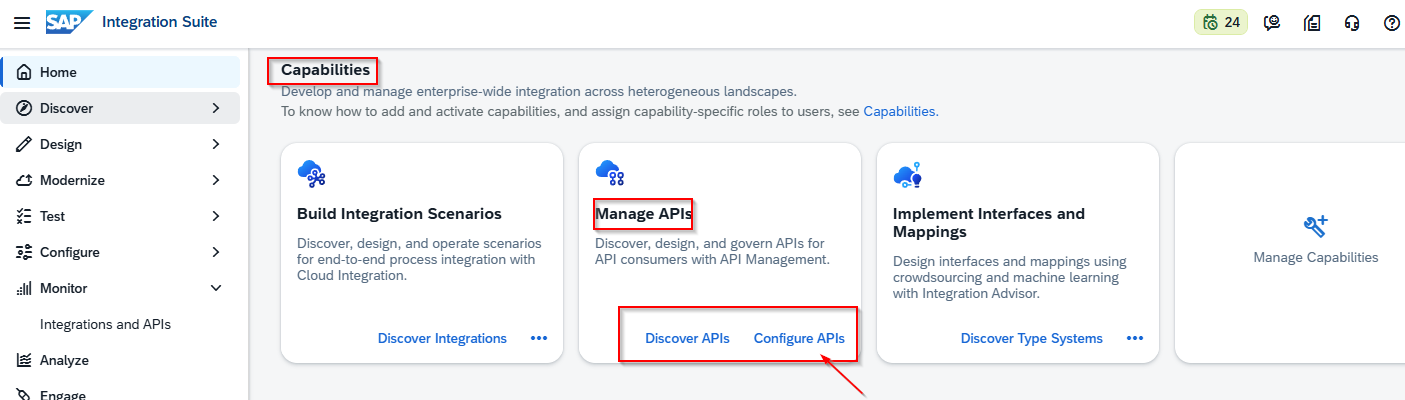
The same happens with Cloud Integration: its runtime is the Integration Cell tab, which is usually already active. That is why the difference is only noticeable with API Management.
Before you start
- The Manage APIs capability enabled in Integration Suite.
- The API Management roles assigned to your user, for example APIPortal.Administrator and APIManagement.SelfService.Administrator.
- Only one API Management instance per subaccount can be activated. If you need more, you need more subaccounts.
Part 1: free trial environment
In a trial environment the process is straightforward, because there is no need to choose an account type or a host name.
Step 1. Locate the inactive runtime
Go to Settings > Runtimes and open the Classic API Management tab. Its status is Inactive and the page shows the message “Activate API Management”. Take a look at the side menu: there is still no APIs option.
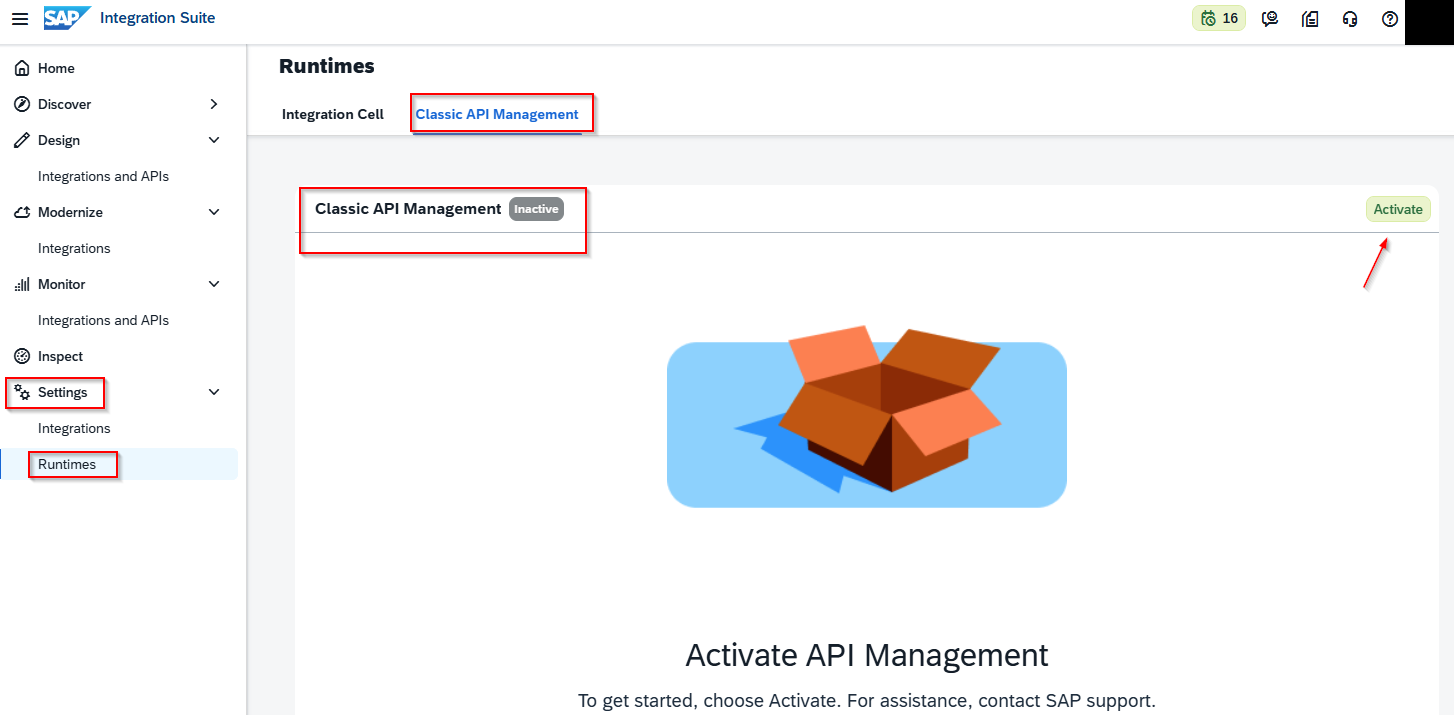
Step 2. Activate
Click Activate (top right) and confirm. The status changes to In Progress and the Setup window appears with the message “Your account is being provisioned, please wait…”.
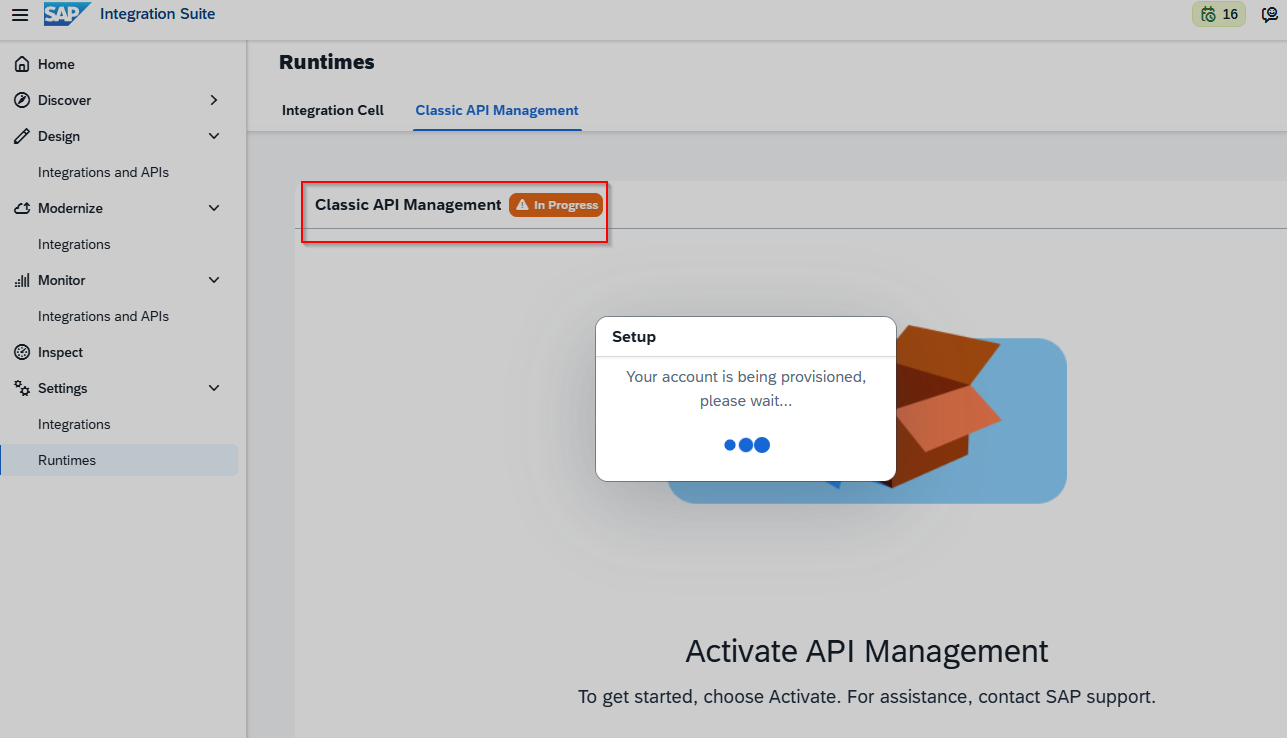
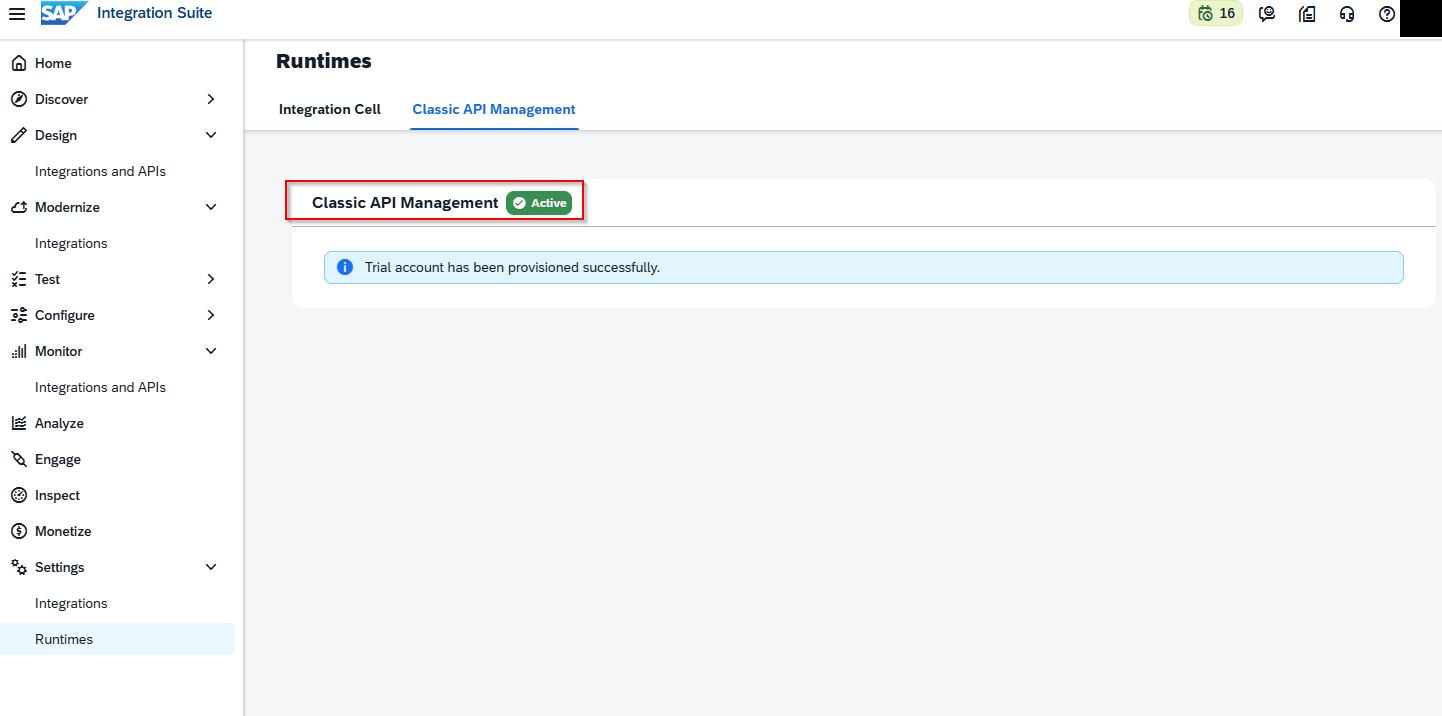
After a few minutes the status changes to Active with the message “Trial account has been provisioned successfully”.
Log out and log back in. APIs now appears in the menu (for example, under Discover) and you have access to Configure > APIs.
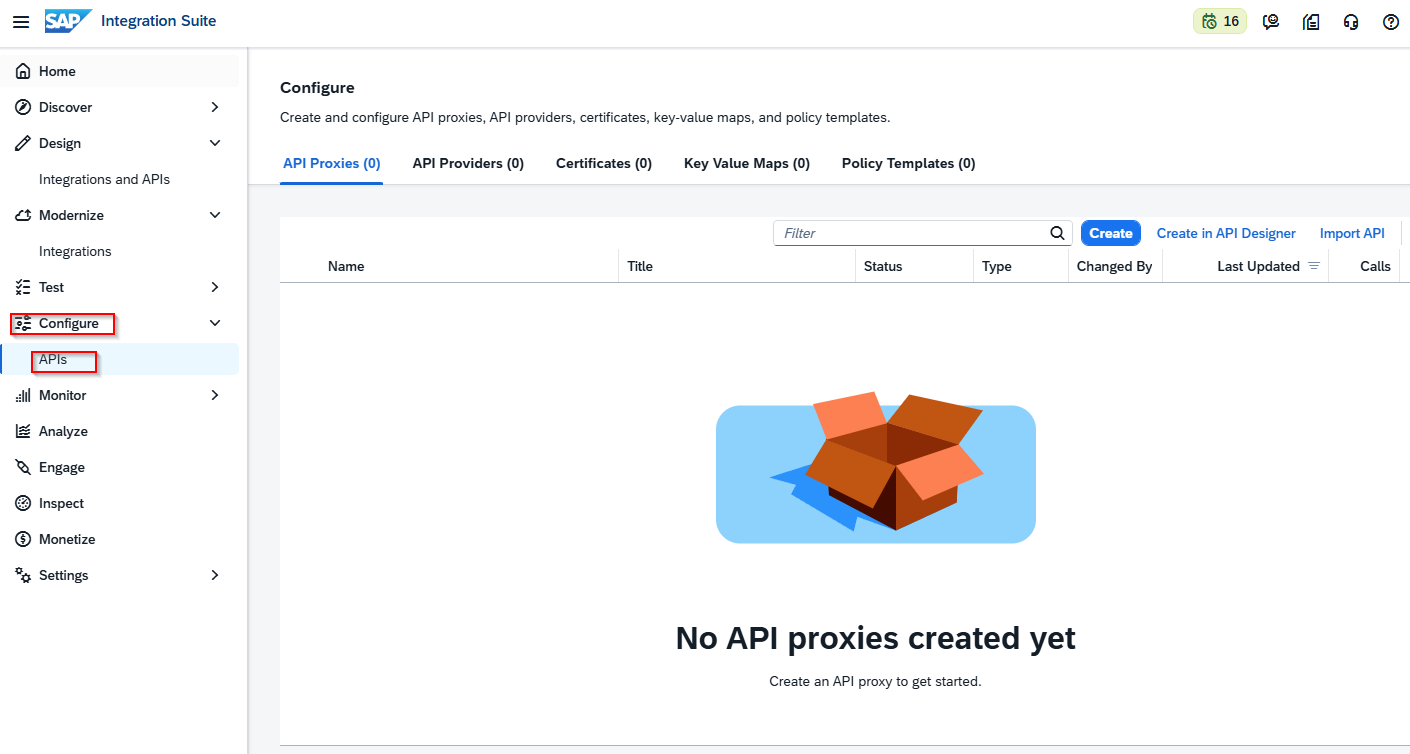
In Configure > APIs you can now work with API Proxies, API Providers, Certificates, Key Value Maps and Policy Templates. In a newly activated environment all the tabs are at zero.
Part 2: productive tenant
In a productive tenant the screen is different: before activating, you have to configure the service. On top of that, there are decisions here that should not be taken lightly.
Before you press Activate in a customer tenant: activation creates the productive API Management runtime and can have a cost impact. Ask the account owner for written authorization.
Step 1. Configure the service
In Settings > Runtimes > Classic API Management (status Inactive), open Configure. The Configure the API Management Service page reminds you that only one API Management instance can be activated per subaccount. Fill in:
| Field | What to enter |
|---|---|
| Account Type | Production for production. Non Production for development or quality |
| Host Alias | The name that will form the URL of all API Proxies: https://<host-alias>.apimanagement.<región>.hana.ondemand.com |
| Notification Contact | A mailbox that will still exist going forward, preferably the team’s rather than the consultant’s |
| Make … the API Portal administrator | Select the checkbox so that your user becomes the API Portal administrator |
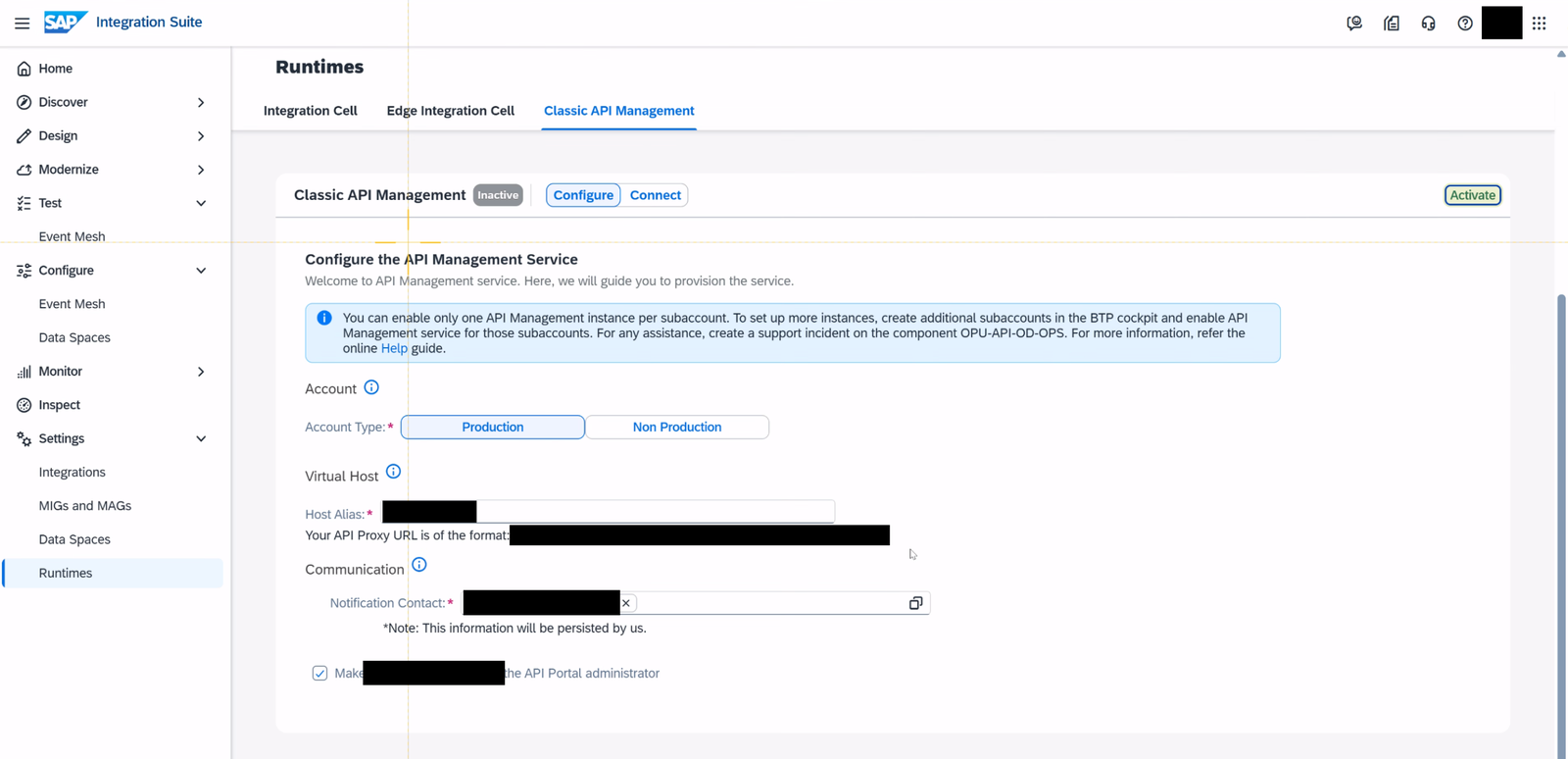
The Host Alias is the important decision. It is the URL you will communicate to all consumers of your APIs. Choose a stable name consistent with your environment convention, because changing it later forces all consumers to change their configuration.
Step 2. Activate and confirm
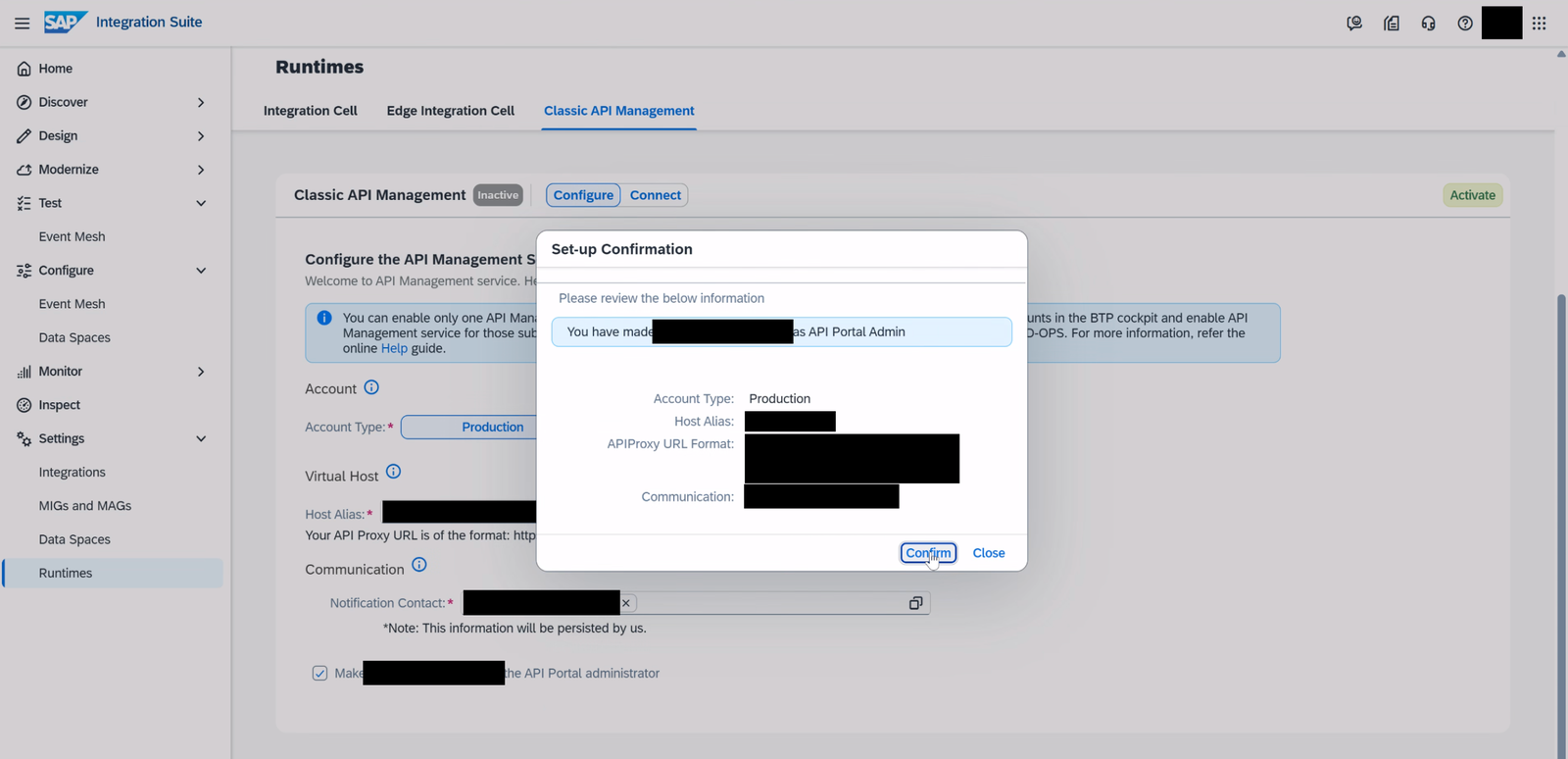
Press Activate. The Set-up Confirmation window appears with the summary: account type, Host Alias, proxy URL format and contact. Review it carefully and press Confirm.
Step 3. Wait for provisioning
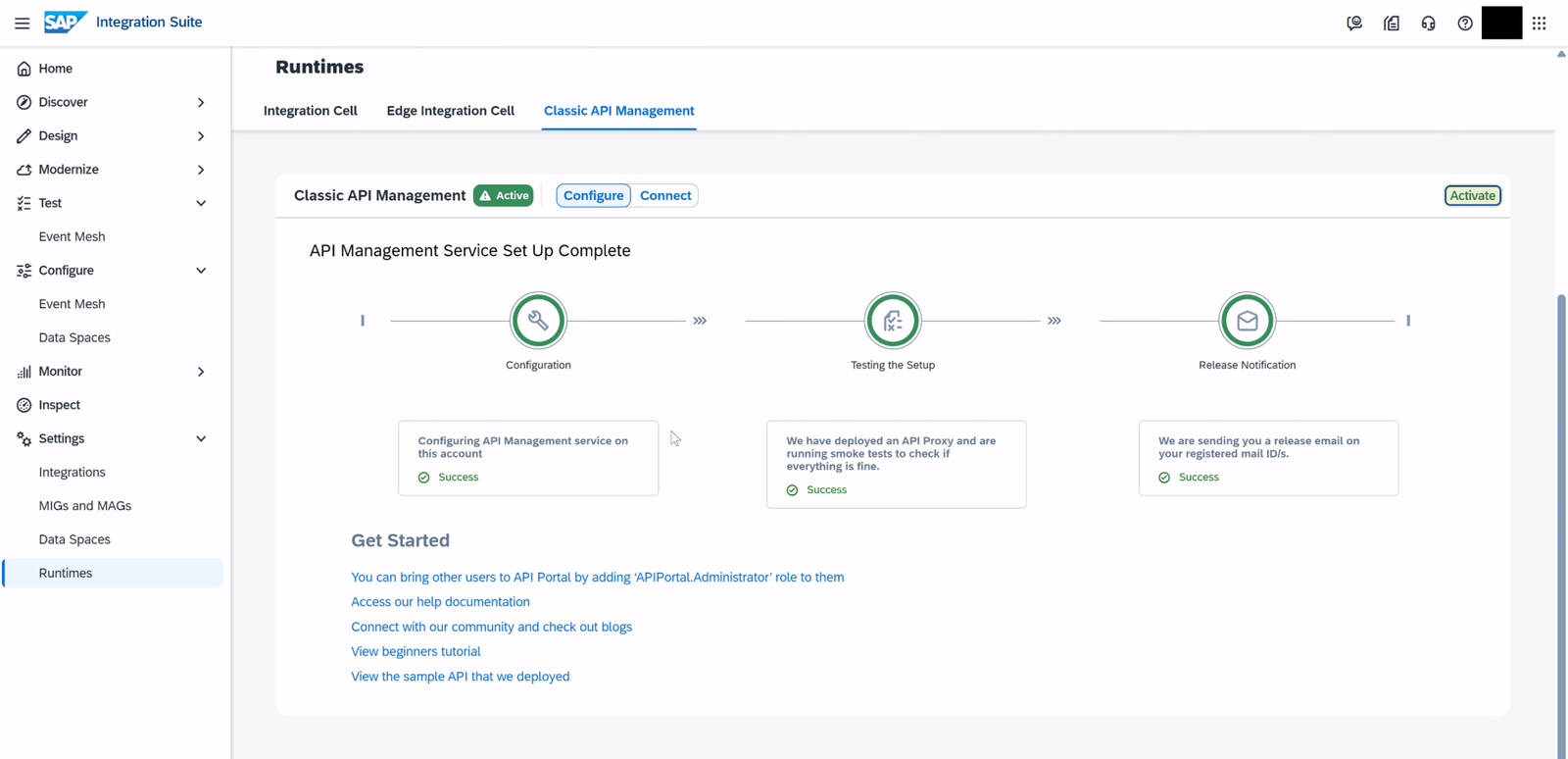
The status changes to In Progress and SAP moves through three phases:
- Configuration: configures API Management in the subaccount.
- Testing the Setup: deploys a sample API Proxy and runs smoke tests.
- Release Notification: sends a confirmation email to the contact you specified.
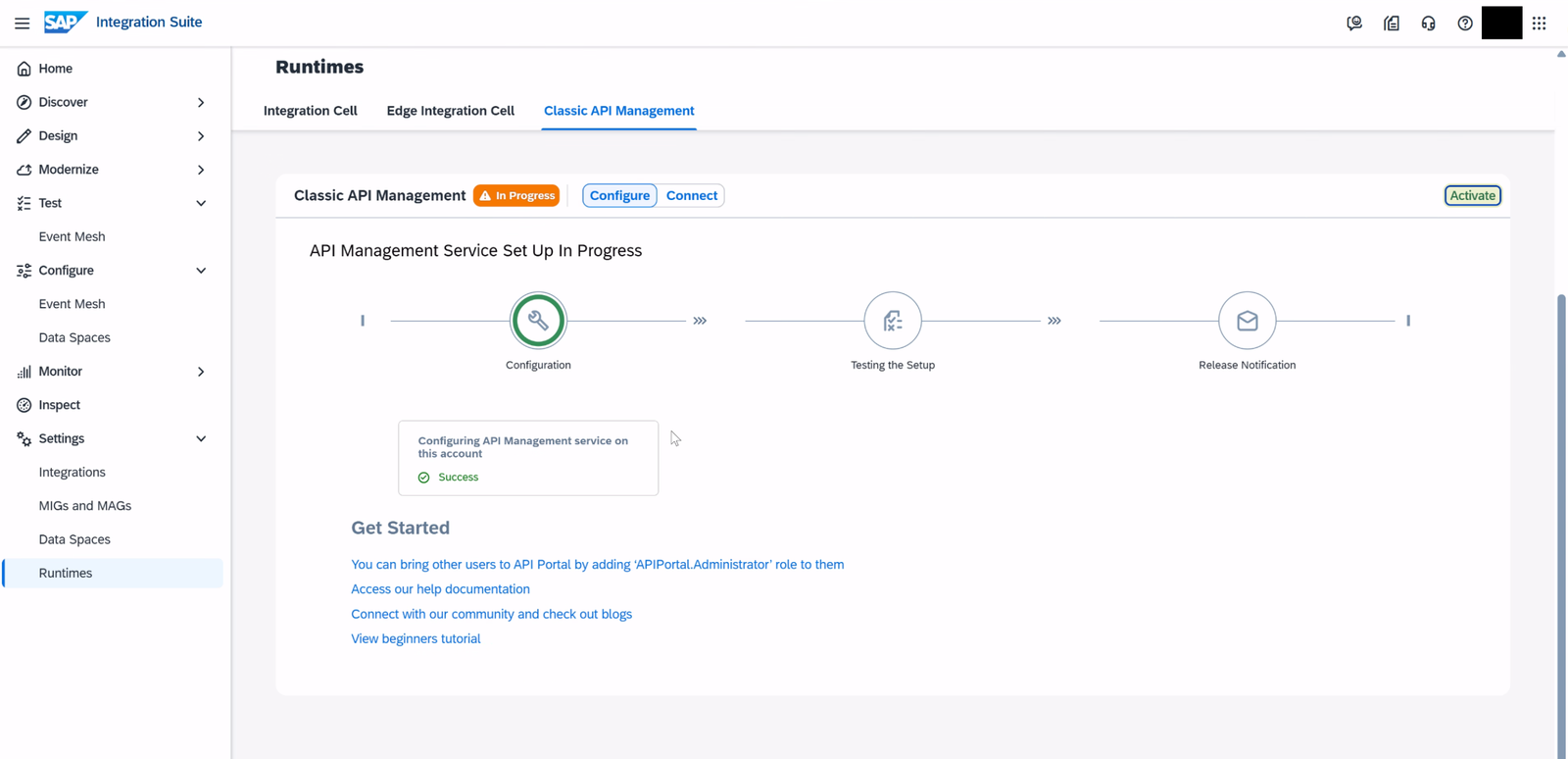
In our case it took around a minute. When it finishes, the status is Active, the page shows API Management Service Set Up Complete and the three phases indicate Success.
Step 4. Verify the connection
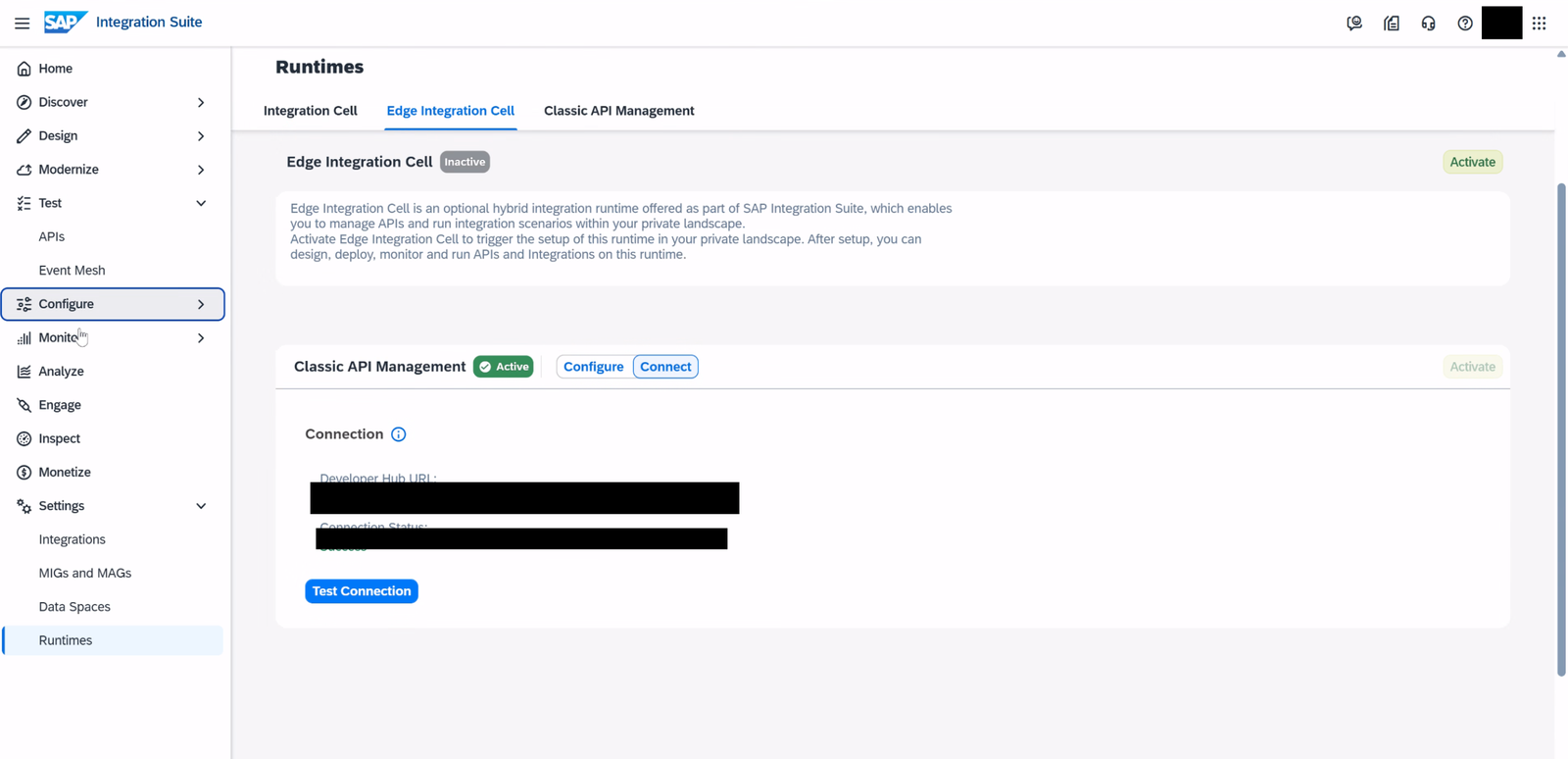
On the same card, open Connect and press Test Connection. It should return Success and show the Developer Hub URL. Reload the page: the side menu now includes Configure > APIs, Analyze, Engage and Monetize.
Differences between trial and production
| Trial | Production | |
|---|---|---|
| Preliminary form | No | Yes: account type, Host Alias, contact and administrator |
| Account type | Not selected | Production or Non Production |
| Proxy host | Assigned by SAP | You define it with the Host Alias |
| Visible provisioning phases (example proxy, mail) | Not shown in our test | Yes |
| Cost impact | No | It may have one: request authorization |
After activation
- Give your team access: assign APIPortal.Administrator to whoever will administer API Management (BTP Cockpit > Security > Role Collections). This is the recommendation the wizard itself shows at the end. If you need to review how role collections work, we explain it in Role collections, role templates and shadow users in SAP BTP.
- Review the sample proxy that SAP deploys during the trial phase. It is not part of your solution and you can delete it.
- Configure the API Providers and the Key Value Maps before importing or creating your proxies.
- Check the TLS compatibility of your consumers. SAP is retiring old TLS 1.2 ciphers at the API Management entry point (KBA 3797056). An incompatible client fails during the handshake and leaves no trace in the API Management logs. We cover this in detail in SAP API Management: how the TLS ciphers are changing.
In short
If in Integration Suite you have API Management “activated” but you do not see Configure > APIs, check Settings > Runtimes. The capability and the runtime are two different things, and without the Classic API Management runtime in Active there is no usable API Management. In a trial, simply click Activate. In production, decide the Host Alias carefully, request authorization and leave a team mailbox as the contact.
Was this article useful?
Thank you for your feedback.
Comments
No comments yet.